Home>Races & Events>Why Your IPhone Race Photos Won’t Open on Windows or Android
Races & Events
Why Your IPhone Race Photos Won’t Open on Windows or Android
Published: August 28, 2026
Snapped a finish-line photo on your iPhone but nobody can open it? Here's why HEIC causes problems and how to fix it in seconds.
(Many of the links in this article redirect to a specific reviewed product. Your purchase of these products through affiliate links helps to generate commission for Therunningadvisor.com, at no extra cost. Learn more)
You cross the finish line, heart pounding, medal swinging. You grab your phone, snap a photo, and immediately text it to your running coach, the race organizer, or a friend cheering you on from home. Then comes the reply: “I can’t open this file.” It’s one of the most frustrating moments a runner can face after a great race. You did everything right. The photo is right there on your phone. So why won’t it open anywhere else?
Key Takeaway:
1. iPhones save photos in HEIC format by default, a file type that Windows PCs and most Android devices cannot open natively.
2. HEIC was designed by Apple to save storage space, but its limited compatibility makes sharing photos a real problem.
3. Converting your race photo to JPG takes seconds using an online converter, and the result works on every device.
The Secret Format Hidden Inside Your iPhone Camera
When you take a photo on an iPhone running iOS 11 or later, your camera doesn’t save it as a JPG. It saves it as a HEIC file. HEIC stands for High Efficiency Image Container, and it’s built on a standard called HEIF, developed by the Moving Picture Experts Group. Apple adopted this format back in 2017 because it compresses photos to roughly half the file size of a JPG without any visible loss in quality.
That’s genuinely impressive engineering. A 4MB JPG from a professional camera might shrink to under 2MB as a HEIC file, while looking identical to the human eye. For runners who take dozens of race photos every weekend, that storage saving adds up fast. A full race day of 200 photos could fit in the space that would normally hold 100.
The problem is that file efficiency means nothing if the people you’re sharing with can’t read the file.
Why Windows PCs Refuse to Open HEIC Files
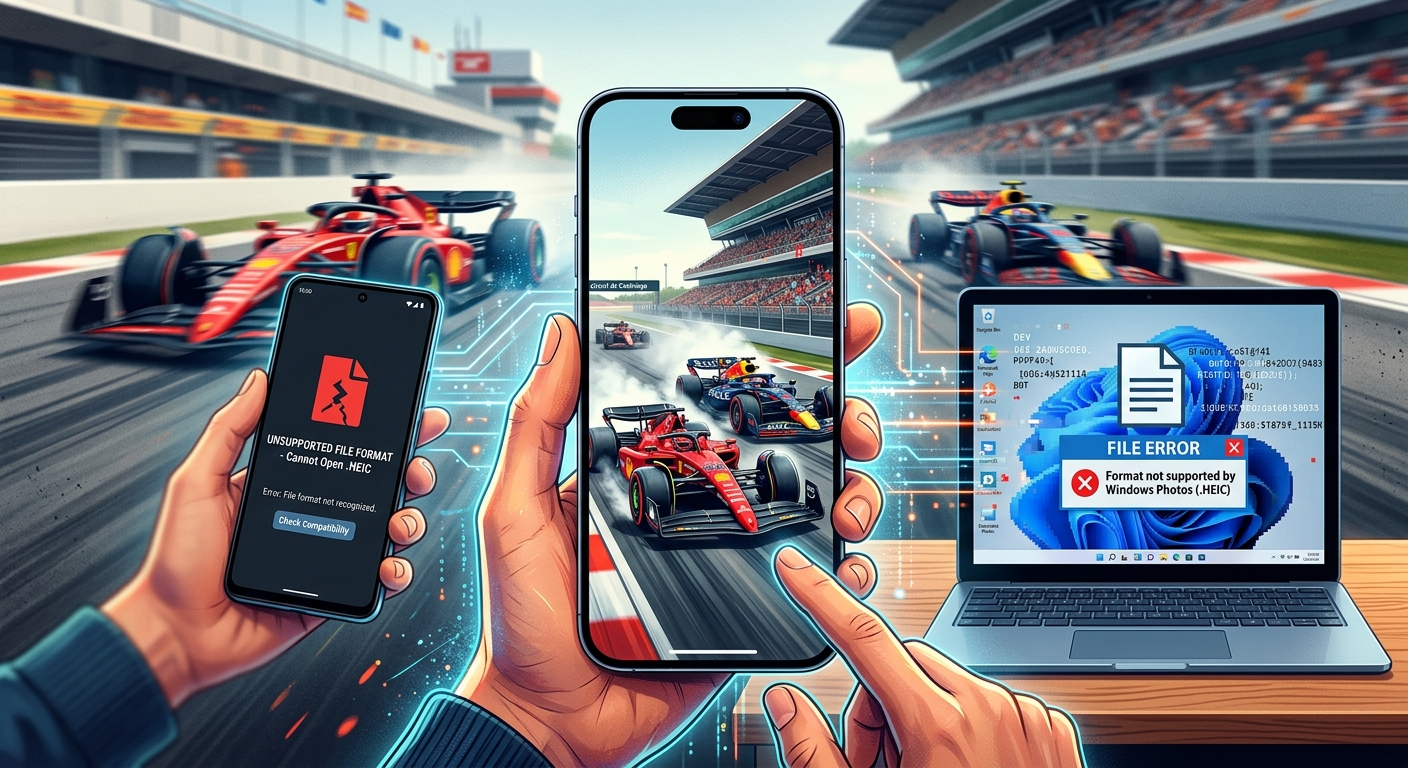
Microsoft built Windows around JPG, PNG, BMP, and GIF from the very beginning. HEIC is a newer standard, and while Windows 11 has added partial support through the Photos app, that support requires a paid codec extension that most users have never installed. On Windows 10, the situation is even worse. Most PCs simply display a generic file icon and an error message when you try to open a HEIC photo.
Your running coach sitting at a Windows laptop doesn’t care about file formats. They just want to see the photo. When they can’t open it, the assumption is often that something went wrong during the transfer, or that your phone sent a corrupted file. Neither is true. The format itself is the barrier.
Race organizers face this constantly. When they ask athletes to submit finish-line photos for newsletters, social posts, or event recaps, a significant portion of the photos they receive are HEIC files that their editing software won’t recognize without a plugin. Most of them end up emailing back with a polite request to “resend as a JPG.”
The Android Side of the Problem
Android phones default to JPG for their camera output. That’s been true for years across Samsung, Google Pixel, OnePlus, and nearly every other major manufacturer. When an Android user receives a HEIC file, the built-in gallery app typically can’t display it. The file appears as a blank thumbnail, or the app reports that the format is unsupported.
This isn’t a minor inconvenience. Think about a running group with a mix of iPhone and Android users. After a race, photos flow freely until someone with an iPhone shares their HEIC files. Suddenly half the group is locked out of the photos from the day. The social moment, the memory, the connection, all get interrupted by an invisible file format issue.
Third-party apps like Google Photos can sometimes handle HEIC files on Android, but only if users have the app installed, have enabled cloud backup, and are using a recent enough version. You can’t rely on that for everyone you might want to share a race photo with.
How Apple Justifies the Default
Apple’s reasoning is straightforward. HEIC saves space on your iPhone, and within Apple’s ecosystem, everything works perfectly. AirDrop between two iPhones transfers HEIC files without any issue. iCloud stores and displays them correctly. Mac computers with recent versions of macOS open HEIC files in Preview just fine.
Apple also built an automatic conversion feature into iOS. When you share a photo via most social media apps or messaging platforms, iOS quietly converts the file to JPG before sending it. This is why sharing to Instagram or sending via WhatsApp usually works fine. The conversion happens invisibly in the background.
But that automatic conversion doesn’t always trigger. Sharing via email, AirDrop to a Windows PC, a direct file transfer through a USB cable, or certain apps that access the raw file, all of these can bypass the conversion and send the HEIC file as-is. That’s when your recipient ends up staring at a file they can’t open.
The Four Times This Causes the Most Trouble for Runners
These are the specific situations where HEIC compatibility tends to cause the most friction:
- Sending race photos to a coach for gait or form review on a Windows computer.
- Submitting finish-line photos to race organizers for event marketing or results pages.
- Sharing photos with Android-using teammates, training partners, or family members.
- Uploading photos to race result platforms or sports community sites that accept JPG or PNG only.
In each case, the fix is the same. Convert the file to JPG before sending it.
Converting Your Race Photos in Seconds
You don’t need to install software or change your iPhone’s camera settings to fix this. An online converter handles the job directly in your browser, on any device.
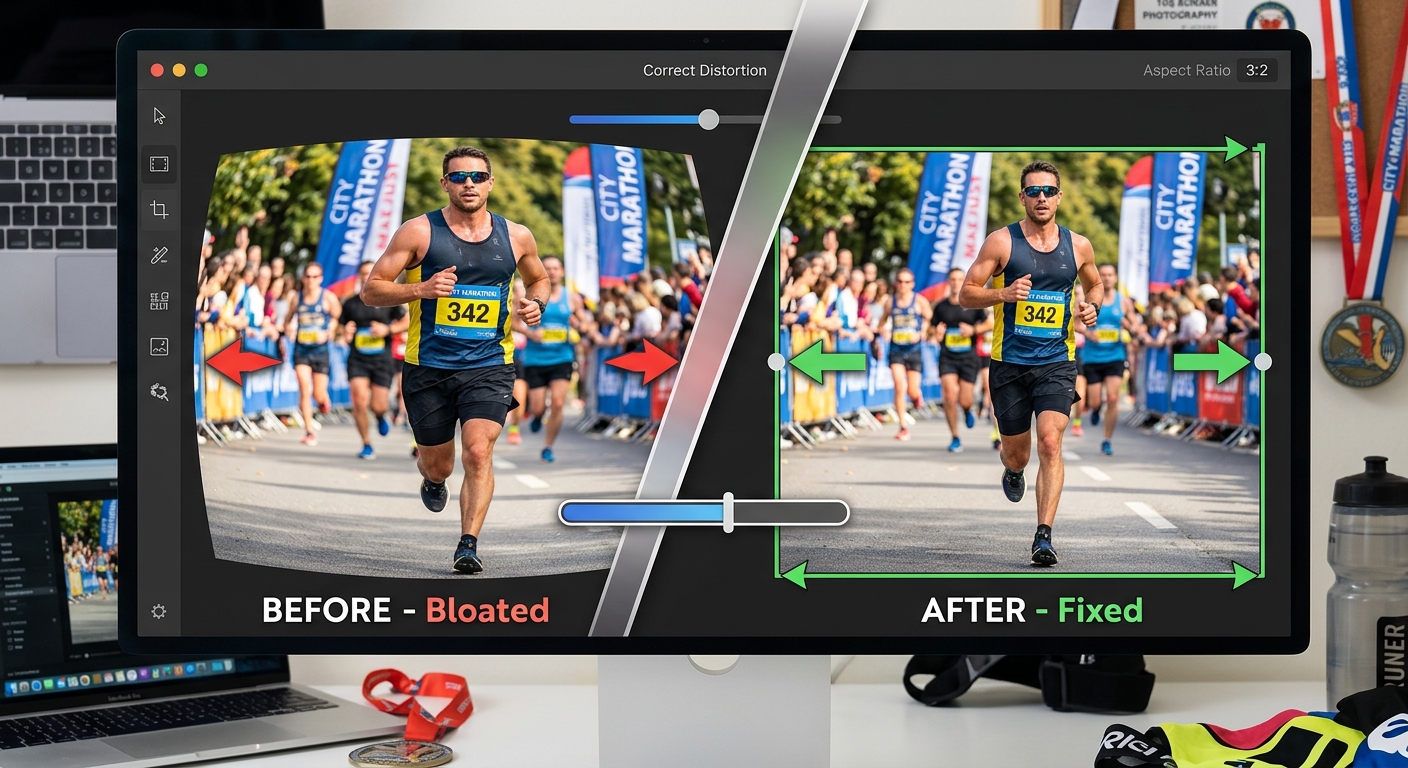
HEIC to JPG lets you upload a HEIC file and download a universally compatible JPG in a matter of seconds. There’s no account to create, no app to download. You go to the page, upload the photo, and get back a JPG that opens on every device, in every email client, in every social media platform, and in every piece of photo editing software.
For post-race sharing, this is by far the path of least resistance. You don’t need to dig into your iPhone settings. You don’t need to ask your coach to install a codec. You don’t need to re-send photos three times. One conversion, done.
Should You Change Your iPhone Camera Settings Instead?
There is another option worth knowing about. iOS lets you switch your camera from HEIC to JPG in the settings. Go to Settings, then Camera, then Formats, and choose “Most Compatible.” From that point on, your iPhone saves all new photos as JPG files.
The trade-off is storage. JPG files are noticeably larger than HEIC files at equivalent quality. If you’re already tight on iPhone storage, or if you take a lot of photos on race weekends, this setting change will fill your phone significantly faster.
Many runners find a middle path more practical. Keep the camera set to HEIC for everyday shooting, where the space savings are genuinely valuable, and convert to JPG only when you need to share a specific photo with someone outside the Apple ecosystem. That approach costs you thirty seconds per photo and nothing in terms of storage.
Why Your Race Memories Deserve to Be Shareable
A finish-line photo is more than a file. It’s proof of the work you put in, the miles you ran, the early mornings and the tired legs and the moment you crossed that line. It deserves to be seen by the people who matter, not trapped behind a compatibility error.
Understanding why iPhones default to HEIC makes the whole situation less mysterious. Apple made a technically sound choice that serves users well inside its own ecosystem. The friction shows up at the edges, when photos need to travel outside that ecosystem to a coach’s Windows PC, an Android phone, or a race organizer’s inbox.
Now that you know why it happens, fixing it is the easy part. The format is the problem. The JPG is the solution. And the conversion takes less time than it took to read this paragraph.